
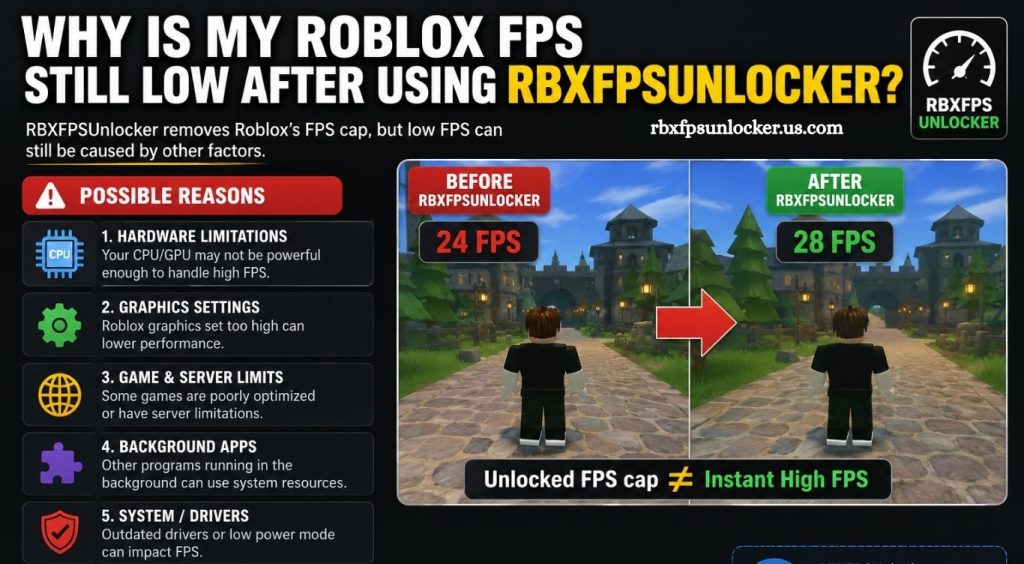
Roblox performance depends on several factors beyond the frame-rate limit. Hardware capability, graphics settings, background applications, thermal performance, display configuration, and game optimization can all affect how smoothly Roblox runs. RBXFPSUnlocker can remove Roblox’s default FPS limitation, yet higher frame rates still require enough system resources.
Players may notice little or no FPS improvement after configuring an FPS unlocker. Understanding the difference between an FPS limit and actual performance helps identify the real cause of low FPS. A few Windows, Roblox, and hardware adjustments can often improve frame stability and reduce unnecessary performance drops.
RBXFPSUnlocker Does Not Increase Hardware Performance
RBXFPSUnlocker primarily changes the frame-rate limit rather than making your computer more powerful. If your system already struggles to render Roblox at higher frame rates, unlocking the FPS limit cannot create additional performance.
Read More: Do I still need RBXFPSUnlocker for Roblox?
For example, a computer producing around 45 FPS because of GPU or CPU limitations will not automatically reach 144 FPS after removing an FPS cap. The unlocker allows Roblox to use higher frame rates when the hardware can deliver them.
Roblox Graphics Settings May Be Too High
High Roblox graphics settings can place additional load on your GPU and CPU. Increasing the graphics quality can improve visual detail while reducing FPS on weaker systems.
Open Roblox settings during gameplay and check the graphics mode. Switching from automatic graphics to manual control allows you to reduce the graphics quality gradually.
Lower settings can be particularly helpful when playing demanding Roblox experiences containing large maps, detailed environments, lighting effects, or many moving objects.
Your CPU May Be Limiting FPS
Roblox can become CPU-limited, especially in experiences with large numbers of players, complex scripts, physics calculations, and detailed game mechanics.
A powerful graphics card does not guarantee high Roblox FPS if the processor cannot keep up with the game. CPU usage, background processes, and processor temperatures can all influence performance.
Closing unnecessary applications before launching Roblox can reduce CPU competition and provide more resources for the game.
Your GPU May Be Under Heavy Load
GPU limitations are another common reason for low FPS. Roblox experiences with detailed graphics can increase GPU usage significantly.
Check GPU utilization through Windows Task Manager or another trusted monitoring tool while Roblox is running. High GPU usage combined with low FPS usually indicates that the graphics processor is working near its capacity.
Reducing Roblox graphics quality can lower GPU workload and improve frame rates.
Background Applications Can Reduce Roblox FPS
Programs running in the background consume system resources. Web browsers with many tabs, recording software, overlays, launchers, synchronization applications, and other utilities can affect gaming performance.
Before starting Roblox, close applications that are not required. Pay particular attention to programs using significant CPU, RAM, or GPU resources.
Windows Task Manager can help identify resource-heavy processes and determine whether another application is contributing to poor performance.
Thermal Throttling Can Cause FPS Drops
High temperatures can cause processors and graphics cards to reduce their clock speeds. This process, commonly called thermal throttling, can lead to unstable or declining FPS during longer gaming sessions.
If Roblox initially runs smoothly but becomes slower after several minutes, temperature may be worth checking. Dust buildup, restricted airflow, poor cooling, or high ambient temperatures can contribute to thermal problems.
Keeping the computer properly ventilated and maintaining clean cooling components can help preserve consistent performance.
Your PC May Not Have Enough RAM
Insufficient available RAM can affect Roblox performance, particularly when several applications are open simultaneously.
A system with limited memory may rely more heavily on virtual memory when physical RAM becomes full. This can contribute to stuttering and slower system responsiveness.
Closing unnecessary programs before playing Roblox can free memory. Upgrading RAM may also help systems that consistently operate near their memory capacity.
Roblox Experience Optimization Matters
Not every Roblox experience delivers the same performance. Developers control many aspects of an experience, including scripts, assets, lighting, physics, and environmental complexity.
You may achieve excellent FPS in one Roblox game while experiencing significantly lower FPS in another. This does not necessarily mean RBXFPSUnlocker is malfunctioning.
Testing several Roblox experiences can help determine whether the problem affects Roblox generally or only a particular game.
Display Refresh Rate Can Affect Your Experience
An FPS counter and monitor refresh rate represent different things. A computer may render 120 FPS while a 60 Hz display can physically refresh only 60 times per second.
Check your Windows display settings and confirm that your monitor is configured for its intended refresh rate. Using the correct refresh rate can make gameplay feel smoother when your system produces sufficiently high FPS.
Windows Power Settings Can Affect Performance
Windows power management can influence CPU and GPU behavior. Performance-focused power settings may allow compatible systems to maintain higher performance during gaming.
Laptop users should also check whether the device is running on battery power. Some laptops reduce performance when unplugged to conserve energy.
For consistent gaming performance, use the appropriate Windows power configuration and ensure the laptop is adequately powered.
Outdated Drivers Can Cause Performance Problems
Graphics drivers influence how games interact with the GPU. An outdated, corrupted, or problematic driver can sometimes cause performance issues.
Updating your graphics driver through the official NVIDIA, AMD, or Intel software can help maintain compatibility and performance. Windows updates may also include important system improvements.
Avoid downloading drivers or gaming utilities from unfamiliar websites because unofficial downloads can introduce security risks.
RBXFPSUnlocker Configuration May Need Attention
Incorrect configuration can prevent an FPS unlocker from behaving as expected. Make sure the application is configured properly and compatible with your current Roblox installation and Windows environment.
Running multiple FPS-limit tools simultaneously can also create conflicts. If another application controls frame rate, disable unnecessary overlapping utilities and test Roblox again.
The key point is that an FPS unlocker should be viewed as a frame-rate limiter adjustment, not a performance booster.
How to Improve Roblox FPS
Start by lowering Roblox graphics quality and closing unnecessary background applications. Check CPU and GPU usage while playing, then monitor temperatures if performance declines over time.
Next, verify your display refresh rate and Windows power configuration. Keep Windows and graphics drivers updated, and test different Roblox experiences to determine whether the issue is game-specific.
If your hardware consistently reaches high CPU or GPU utilization at low FPS, upgrading the relevant component may provide a larger improvement than changing software settings.
Conclusion
RBXFPSUnlocker can remove a frame-rate limitation, but it cannot overcome hardware limitations, excessive temperatures, demanding Roblox experiences, or system resource usage. Low FPS after using an unlocker usually means another performance factor is restricting the frame rate.